







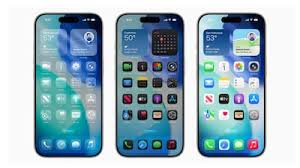
iOS 26 Update Brings Liquid Glass Interface – Here’s How to Turn It Off
The iOS 26 update introduces a sweeping set of features, with the most noticeable being the new Liquid Glass interface across apps and system screens. Its transparent, glass-like design has sparked speculation that Apple may be moving closer to an all-glass device in the future. While many users appreciate the sleek look, others may find it distracting or prefer a more opaque interface.
During the iOS 26 beta phase, opinions about the Liquid Glass UI were mixed. Now, in the final release, Apple has refined the design but also made it easy to disable if it isn’t to your liking.
How to Disable the iOS 26 Liquid Glass Design on Your iPhone:
- Open Settings on your iPhone.
- Tap Accessibility.
- Scroll to Display & Text Size.
- Enable Reduce Transparency.
- Optionally, turn on Increase Contrast for better readability.
Once enabled, the Liquid Glass effect will be reduced, giving you a more solid, easier-to-read interface. Apple also provides additional accessibility options to help users customize the look and feel of iOS 26 according to their preferences.
Beyond design changes, iOS 26 places a strong emphasis on Apple Intelligence features, including a major Siri AI overhaul planned for 2026. These AI capabilities, however, are limited to newer devices. To access them, you’ll need:
- iPhone 15 Pro or later
- Any M-series iPad or Mac
The iOS 26 update is compatible with iPhone 11 and newer models, showing Apple’s commitment to supporting older devices released as far back as 2019. While these older models may not fully leverage all new features, the update gives users extra time before considering an upgrade, keeping them within the Apple ecosystem.